Virtualization Host Sizing: A Practical Guide to Server Consolidation
How to consolidate aging closet servers onto right-sized virtualization hosts: inventory, weeks of measurement, headroom, N+1, storage, licensing and a worked sizing example.
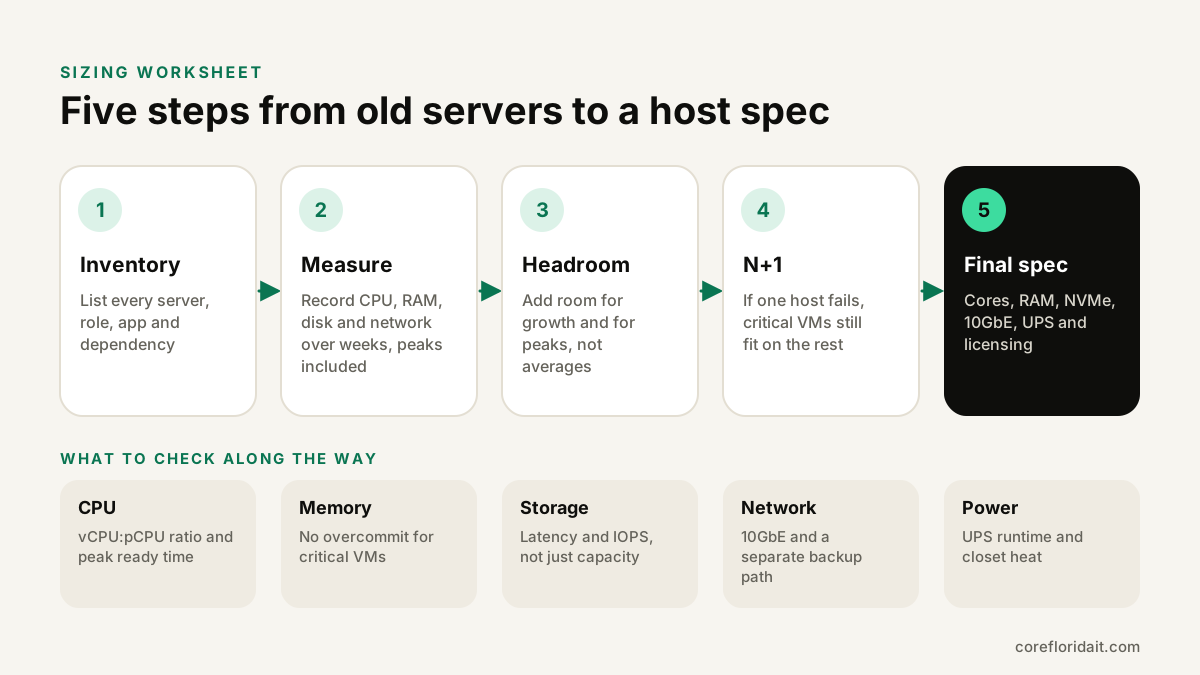
Sizing a virtualization host for server consolidation starts with measurement, not with a spec sheet: inventory every server, record real CPU, memory, storage and network use over several weeks, add headroom for growth and peaks, and make sure the remaining hosts can still run the critical workloads if one fails (N+1). Only then do you choose cores, RAM, NVMe storage, 10GbE networking, UPS capacity and licensing. This guide walks through each step with a worksheet and a worked example.
Key takeaways
- Measure for weeks, including month-end and busy days. Averages hide the peaks that cause slowdowns.
- CPU can usually be shared across VMs; memory for critical workloads should not be overcommitted.
- For storage, latency and IOPS matter more than raw terabytes. Use enterprise SSDs or NVMe with power-loss protection for VMs.
- Plan N+1: if one host fails, the others must carry every critical VM.
- Windows Server is licensed per physical core on each host where its VMs may run. Factor licensing into the design, not after.
Why consolidate the server closet now
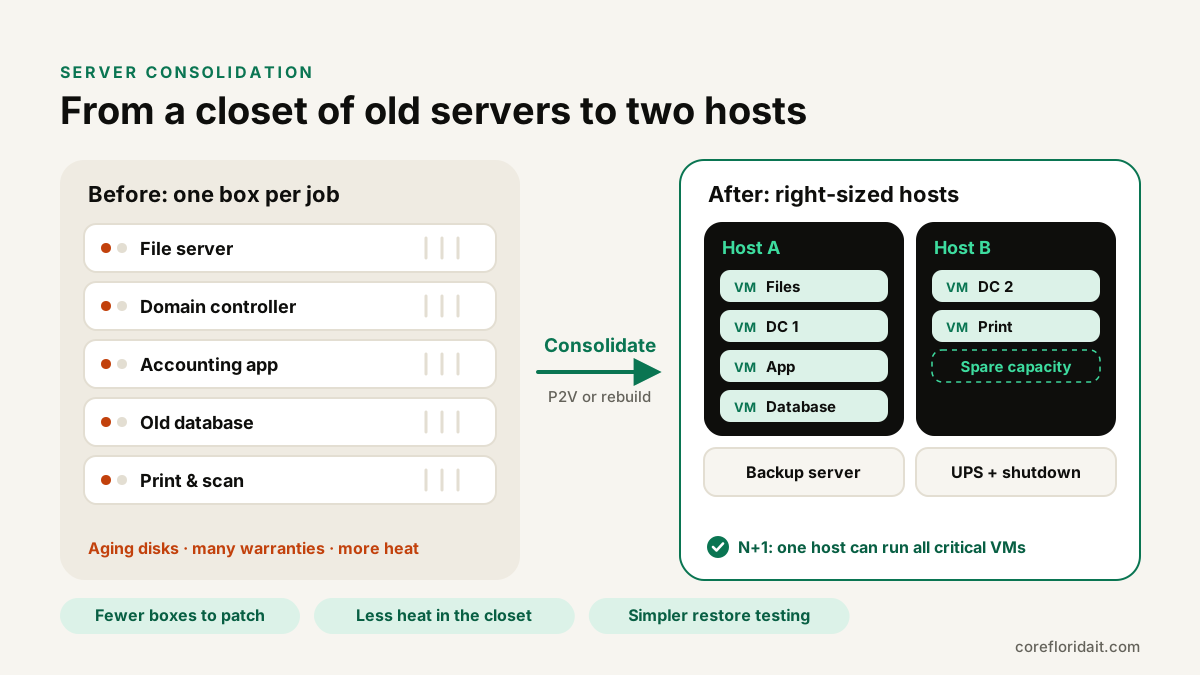
Across Miami-Dade and Broward, many offices still run a row of single-purpose servers in a closet: a domain controller from one decade, a file server from another, an accounting or practice-management server the vendor installed years ago. Each has its own disks, warranty, backup job and power supply. Every one of them adds heat to a small room, and in South Florida that room often shares a wall with an office that is already fighting humidity.
Consolidating onto one or two virtualization hosts reduces the number of boxes to patch, back up and replace, and makes restores and hardware upgrades far easier, because a virtual machine is not tied to the hardware underneath. The risk is getting the size wrong: too small and everything slows down at month-end; too big and you pay for capacity and licenses you never use.
Step 1: inventory every server and dependency
List each physical server and what it does. For each, record:
- Roles and applications (AD, DNS, DHCP, file shares, SQL Server, line-of-business apps, print).
- Operating system and version, and whether it is still supported. Unsupported systems are better rebuilt than copied.
- Dependencies: which apps talk to which databases, license dongles, serial devices, scanners that save to a share.
- Storage used and growth over the last few years, if you can find it.
- Who owns the application and who to call at the vendor.
This is also when you decide what not to move: a workload that belongs in Microsoft 365, or a retired application that can be archived.
Step 2: measure real utilization over time
Collect at least two to four weeks of data, ideally including a month-end, payroll run or other busy period. On Windows, typeperf can log the key counters to CSV every five minutes:
REM counters.txt
\Processor(_Total)\% Processor Time
\Memory\Available MBytes
\Memory\Committed Bytes
\PhysicalDisk(_Total)\Disk Transfers/sec
\PhysicalDisk(_Total)\Avg. Disk sec/Transfer
\Network Interface(*)\Bytes Total/sec

typeperf -cf counters.txt -si 300 -o C:\perf\server01.csv -f CSV
On Linux, the sysstat tools (sar, iostat -x) give the same picture. For each server, write down the peak and the typical (95th percentile) value, not the average:
- CPU: how many cores are actually busy at peak (for example, 40% of an 8-core server is roughly 3 busy cores, if the load is spread evenly).
- Memory: how much is really in use at peak. Note that SQL Server and Exchange take memory on purpose; check their configured limits.
- Disk: IOPS at peak and average latency per transfer. Rising latency at peak is the warning sign.
- Network: throughput at peak and during backups.
Keep in mind that old hardware can make results look worse than they will on new hosts, especially slow spinning disks. Measure anyway; it tells you where the bottleneck is.
Step 3: understand each resource before adding headroom
CPU and the vCPU:pCPU ratio
A virtual CPU (vCPU) is scheduled on a physical core (pCPU) by the hypervisor. Because most office servers are idle most of the time, you can usually assign more vCPUs in total than you have physical cores. That ratio is a design choice, not a fixed rule: light domain controllers and print servers share well, while busy SQL Server, remote desktop or rendering workloads share poorly. Two practical rules:
- Give each VM only the vCPUs it needs. Oversized VMs can perform worse, because the hypervisor must find enough free cores at the same time.
- Keep a single VM's vCPUs within one physical socket (NUMA node) when possible.
Watch for scheduling delay after go-live: CPU ready time on VMware, %steal inside Linux guests and host pressure metrics on Proxmox VE.
Memory: do not overcommit critical workloads
Memory is the resource that most often runs out. Hypervisors offer techniques to stretch it, such as ballooning (a guest driver hands back unused memory), page sharing (KSM on Proxmox) and swapping. They help with lab or low-priority VMs, but under pressure they slow everything down. For domain controllers, databases and line-of-business servers, plan real RAM for each VM's peak, plus memory for the host itself. If you use ZFS on Proxmox VE, its ARC cache also lives in host RAM: set its limit deliberately and include it in the plan. Note that Windows guests need the VirtIO balloon driver for ballooning to work at all.
Storage: latency and IOPS before capacity
Capacity is easy to buy; performance is what users feel. Several VMs on the same disks create a mixed, random workload that spinning disks handle poorly.
| Media | Good for | Notes |
|---|---|---|
| NVMe SSD (enterprise) | VM disks, databases, everything latency-sensitive | Prefer drives with power-loss protection (PLP) and suitable endurance ratings |
| SATA/SAS SSD (enterprise) | VM disks for lighter workloads | Still far better than HDD for random I/O |
| HDD (7.2k) | Backups, archives, large cold file shares | Not for VM boot disks in a consolidated host |
Use mirrored layouts (RAID 10 or ZFS mirrors) for VM storage: they rebuild faster and handle random writes better than parity layouts. Leave free space for snapshots and, on ZFS, to keep performance steady as the pool fills. Avoid consumer SSDs without power-loss protection for VM storage; synchronous writes and wear are where they fall short.
Network: 10GbE and separate paths
Consolidation concentrates traffic. Plan for 10GbE (SFP+ or 10GBASE-T) between hosts, storage and the core switch, and separate traffic with VLANs or dedicated ports: management, VM traffic, storage or replication, and backups. In a Proxmox VE cluster, give the cluster communication (corosync) its own link so a busy backup cannot disrupt it.
Step 4: add headroom and plan N+1
Headroom covers growth over the life of the hardware (usually several years), new applications and peaks you did not capture. Choose a planning factor based on your business plans (hiring, new offices, a new practice-management system) and write the assumption down.
N+1 means that if any one host fails or is down for maintenance, the remaining hosts can still run all critical VMs. With two hosts, each must be able to carry every critical workload on its own. For automatic failover in a Proxmox VE cluster you need quorum: three nodes, or two nodes plus a QDevice. A simpler two-host design can use storage replication with manual or semi-automatic recovery, which suits many small offices. Our Proxmox virtualization service designs both.
Step 5: a worked example (hypothetical workloads)
The figures below are invented to show the method; they are not typical values. Replace them with your own measurements.
| VM | Measured peak busy cores | Measured peak RAM | Planned vCPU | Planned RAM | Storage used | Critical? |
|---|---|---|---|---|---|---|
| DC1 (AD, DNS, DHCP) | 0.5 | 3 GB | 2 | 4 GB | 60 GB | Yes |
| DC2 (new, for redundancy) | n/a | n/a | 2 | 4 GB | 60 GB | Yes |
| File server | 1 | 6 GB | 2 | 8 GB | 1.5 TB | Yes |
| Accounting app + SQL Server | 3 | 20 GB | 4 | 24 GB | 300 GB | Yes |
| Remote desktop host | 4 | 28 GB | 8 | 32 GB | 200 GB | Yes |
| Print and utilities (Linux) | 0.3 | 1.5 GB | 2 | 2 GB | 40 GB | No |
| Total | about 9 | 20 | 74 GB | about 2.2 TB |
Applying the method:
- Headroom. For this example we assume 30% growth over the hardware's life. RAM: 74 GB × 1.3 ≈ 96 GB, plus about 16 GB for the hypervisor and ZFS cache ≈ 112 GB → choose 128 GB per host. Busy cores: 9 × 1.3 ≈ 12 at peak → a 16-core CPU per host leaves room, with a comfortable vCPU:pCPU ratio of 20:16.
- Storage. 2.2 TB × 1.3 ≈ 2.9 TB, plus free space for snapshots and pool health → plan roughly 4 TB usable or more, for example four enterprise NVMe drives in two mirrors.
- N+1. Every VM except print is critical, so both hosts get the same spec and either one can run everything during a failure or maintenance window.
- Network. Two 10GbE ports per host (VMs and management on one, replication and backup on the other) plus a separate link for cluster traffic.
- Backup. A separate backup server or Proxmox Backup Server with its own disks, plus an off-site copy. See our Proxmox Backup Server setup guide and the 3-2-1 backup strategy.
Licensing: plan it with the hardware
Windows Server Standard and Datacenter are licensed per physical core on the host, with minimums per processor and per server, plus client access licenses (CALs) for users or devices. Standard covers a limited number of Windows Server VMs per fully licensed host and can be "stacked" for more; Datacenter covers unlimited Windows Server VMs on that host. Two consequences for sizing:
- More cores than you need means more core licenses. Do not buy a high-core CPU "just in case" without counting the licensing impact.
- With N+1, every host where a Windows VM may run must be licensed for it. A failover host is not free.
SQL Server, remote desktop services (RDS CALs) and some line-of-business applications have their own rules. Licensing terms change, so confirm the count with your licensing provider before ordering hardware.
Power, UPS and heat in a small closet
- UPS: size it from the measured draw of the new hosts, switch and storage, not from power supply labels, and choose a runtime long enough for a clean shutdown. Configure automatic shutdown with the UPS vendor's software or Network UPS Tools (NUT) on Proxmox VE, and test it.
- Heat: every watt becomes heat. Watts × 3.412 gives BTU per hour, which your HVAC contractor can use to check whether the closet needs dedicated cooling or ventilation.
- Storm season: brief outages and brownouts are common during South Florida storms. Plan graceful shutdown and startup order (storage and domain controllers first), and keep a backup copy off-site in case the office is inaccessible.
Consolidation usually reduces heat and power compared with a row of old servers, but measure after go-live rather than assuming.
Common mistakes
- Sizing from averages instead of peaks.
- Giving every VM 8 vCPUs "to be safe".
- Overcommitting RAM on the database server.
- Buying large, slow disks for VM storage because the capacity number looked good.
- Forgetting that the failover host must be licensed and big enough.
- Copying an unsupported operating system as-is (P2V) instead of rebuilding the role on a supported version.
FAQ
Should we use one host or two?
One host is simpler but has no hardware redundancy: when it fails, everything stops until it is repaired or restored. Two hosts with replication, or a three-node cluster, keep critical systems running. The right choice depends on how long the business can tolerate an outage.
Can we reuse our existing servers as virtualization hosts?
Sometimes, if they are recent, under warranty and support the hypervisor. Often the oldest servers are the ones being replaced for reliability reasons, so reuse them only for non-critical roles or testing.
Proxmox VE, VMware or Hyper-V?
All three can host these workloads. Licensing, existing skills and backup tooling usually decide. See Proxmox vs VMware for small business.
Should some servers move to the cloud instead?
Yes, when a workload fits better there, for example email and file collaboration in Microsoft 365. Latency-sensitive local apps and large file shares often stay on-premises. Our cloud and dedicated servers page covers the hybrid options.
Get a sizing review
Core Florida IT measures, sizes and migrates server closets for offices in Miami, Doral, Fort Lauderdale and across South Florida, and supports the result remotely nationwide. Request a free IT assessment and we will start with an inventory and a measurement plan for your servers.