Virtual Desktops (VDI) for Small Businesses with Remote and Hybrid Teams
Virtual desktops keep company data off personal devices and let staff work from anywhere. Compare Windows 365, Azure Virtual Desktop and on-prem RDS, and learn how to secure them.

Virtual desktops (VDI) let your team use a full Windows desktop that runs in a data center or the cloud instead of on the laptop in front of them. For a small business with remote or hybrid staff, that means company data stays off personal devices, new hires and contractors get a ready workstation in minutes, and people can keep working from anywhere when the office is closed, which matters every hurricane season in South Florida. The main choices are Windows 365 Cloud PC, Azure Virtual Desktop (AVD) and on-premises Remote Desktop Services (RDS) on your own Proxmox or Hyper-V servers.
Key takeaways
- Windows 365 is the simplest: one personal cloud PC per user, managed like a laptop, with predictable per-user licensing.
- Azure Virtual Desktop is the most flexible: pooled multi-session hosts, published apps and fine control, but it needs Azure skills.
- On-prem RDS fits when data or legacy servers must stay on hardware you control, or you already own capable hosts.
- VDI is not automatically secure: enforce MFA and Conditional Access, disable drive and clipboard redirection by default, and set session timeouts.
- User experience depends on profiles (FSLogix), printing, Teams optimization and latency. Pilot before you migrate everyone.
What VDI is and when it is a good fit
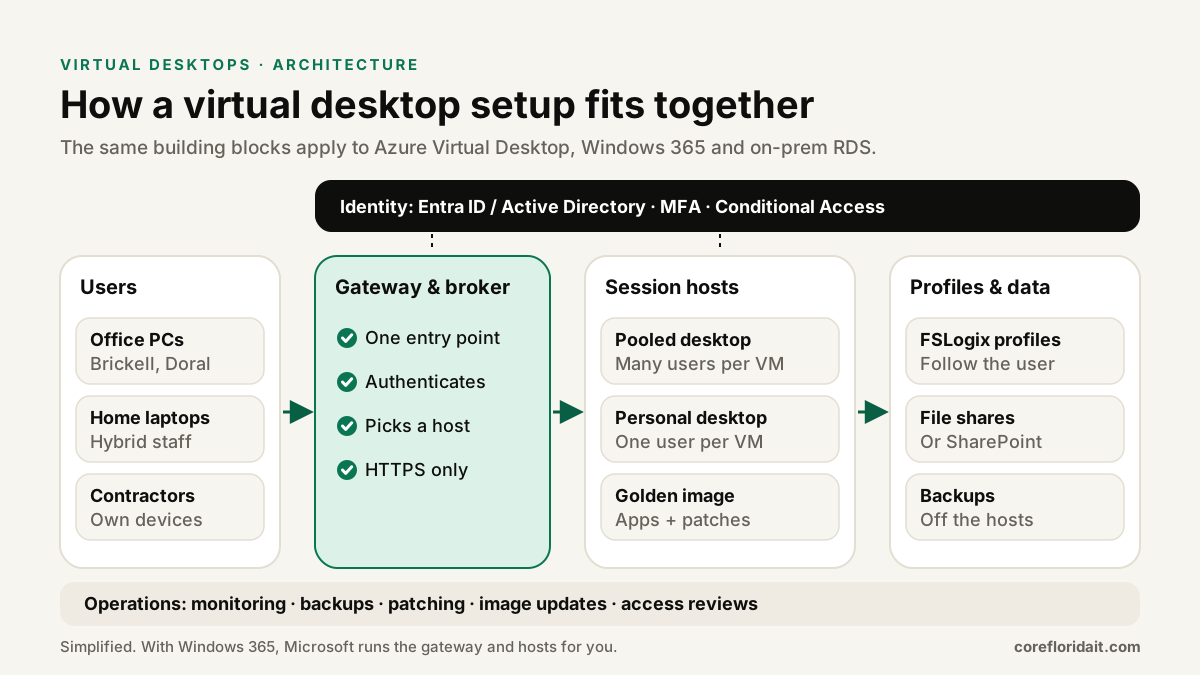
In a virtual desktop setup, the user's device is just a window. Applications, files and processing live on a session host, a virtual machine in Azure or on your servers. Users connect through a gateway with the Windows App, a Remote Desktop client or a web browser.
VDI tends to be a strong fit for:
- Contractors and seasonal staff. A CPA firm adding preparers for tax season can grant a desktop with the tax software already installed, and remove access on the last day without collecting a laptop.
- Compliance-heavy professional services. Law firms and accounting practices that handle confidential client files can keep documents inside the virtual desktop rather than on home computers.
- Business continuity. When a storm closes offices in Brickell, Doral or Fort Lauderdale, staff who evacuate can sign in from any reasonable device with internet access, and the desktop is exactly as they left it.
- Line-of-business apps that need to sit close to a database, such as older accounting or practice-management software that performs poorly over a VPN.
- Bring-your-own-device policies, where you do not want company data stored on personal equipment.
It is a weaker fit for graphics-heavy work without GPU hosts, for staff who regularly work offline, and for teams whose apps are already fully web-based (where hardened browsers and Microsoft 365 may be enough).
Your options, compared
Windows 365 Cloud PC gives each user a dedicated Windows PC hosted by Microsoft. You pick a size, assign a license and manage it in Intune like any other device. Microsoft runs the infrastructure. Business and Enterprise editions exist with different management features, and there are Frontline options for shift workers.
Azure Virtual Desktop runs in your own Azure subscription. You build host pools, choose VM sizes, and can use Windows 11 Enterprise multi-session, so several users share one VM. You can publish full desktops or individual apps (RemoteApp). User access rights come with eligible Microsoft 365 or Windows licenses, and you pay Azure for the compute, storage and networking you consume, so cost depends heavily on scaling plans and shutdown schedules.
On-premises RDS uses Windows Server Remote Desktop Services on your own hardware, often as VMs on Proxmox or Hyper-V. It requires Windows Server licenses plus RDS Client Access Licenses (per user or per device) and a properly secured RD Gateway. You control everything, including where data lives, and you are responsible for everything, including power, cooling and failover.
Browser-based access is available for all three (the Windows App in a browser, the RD Web client, or HTML5 gateways for RDS). It helps with locked-down or borrowed devices, though the installed client usually gives a better experience.
| Factor | Windows 365 Cloud PC | Azure Virtual Desktop | On-prem RDS (Proxmox / Hyper-V) |
|---|---|---|---|
| Management effort | Low, managed like a laptop in Intune | Medium to high, Azure and image management | High, you own the hardware and stack |
| Licensing complexity | Simple, fixed per user | Moderate: user licenses plus Azure consumption | Moderate: Windows Server plus RDS CALs |
| Multi-session (many users per VM) | No, one user per Cloud PC | Yes | Yes |
| Latency | Depends on the Azure region chosen | Depends on region; RDP Shortpath helps | Low inside the office; depends on your internet uplink for remote users |
| Data residency | Microsoft region you select | Azure region you select | Your building or colocation |
| Offline work | Not available | Not available | Not available (local apps needed) |
| Storm resilience | High if users have internet | High if users have internet | Depends on your site's power and connectivity |
| Best for | Small teams wanting simplicity | Pooled desktops, seasonal staff, published apps | Data on your hardware, existing servers |
For background on the on-premises side, see our Proxmox vs VMware comparison.
Security: VDI is a control point, not a guarantee
A virtual desktop concentrates access in one place, which is a great opportunity to enforce good controls, and a single point to protect.
- Require MFA for every connection, preferably phishing-resistant methods such as passkeys or authenticator number matching.
- Use Conditional Access to require compliant devices for full access, block risky sign-ins, and limit admin access.
- Disable drive, clipboard and USB redirection by default. Enable them only for groups with a documented need. Allow printer redirection if staff must print at home.
- Set session time limits: lock idle sessions and sign out disconnected sessions after a reasonable period.
- Never expose RDP (port 3389) directly to the internet. Use AVD's broker, Windows 365, or an RD Gateway with MFA.
- Patch the golden image monthly and keep EDR on every session host.
- Back up profile and file storage separately from the hosts.
For AVD, many of these are custom RDP properties on the host pool. An illustrative restrictive baseline:
drivestoredirect:s:
redirectclipboard:i:0
usbdevicestoredirect:s:
redirectprinters:i:1
audiocapturemode:i:1
camerastoredirect:s:*
For session timeouts on RDS or AVD session hosts, use Group Policy or Intune settings under Remote Desktop Session Host > Session Time Limits (for example, end disconnected sessions after a set period and set an idle limit).
User experience: what makes or breaks adoption
Users judge VDI on whether it feels like their own PC. Plan these items before the pilot:
- Profiles with FSLogix. FSLogix stores each user's profile in a container on a file share or Azure Files, so Outlook, OneDrive and app settings follow the user across pooled hosts and sign-in stays quick.
- Teams and video calls. Use the current Teams client with media optimization for AVD and Windows 365, so audio and video are processed on the local device instead of the session host.
- Printing. Decide early: redirected local printers, Universal Print, or office print servers. Printing is a common source of help desk tickets in new VDI rollouts.
- Latency. Choose an Azure region close to your users, and test from home internet, not only the office.
- Multiple monitors and peripherals. Check scanners, signature pads and dictation devices used by law and medical offices; some need specific redirection.
- Images and updates. Keep one golden image per role, update monthly, and test with a small group first.
A minimal FSLogix profile configuration on a session host looks like this:
HKLM\SOFTWARE\FSLogix\Profiles
  Enabled                    (DWORD)  1
  VHDLocations               (MULTI_SZ) \\fileserver\fslogix$
  DeleteLocalProfileWhenVHDShouldApply (DWORD) 1
  FlipFlopProfileDirectoryName (DWORD) 1
A practical rollout plan
- Inventory apps and users: which apps, peripherals and data each role needs.
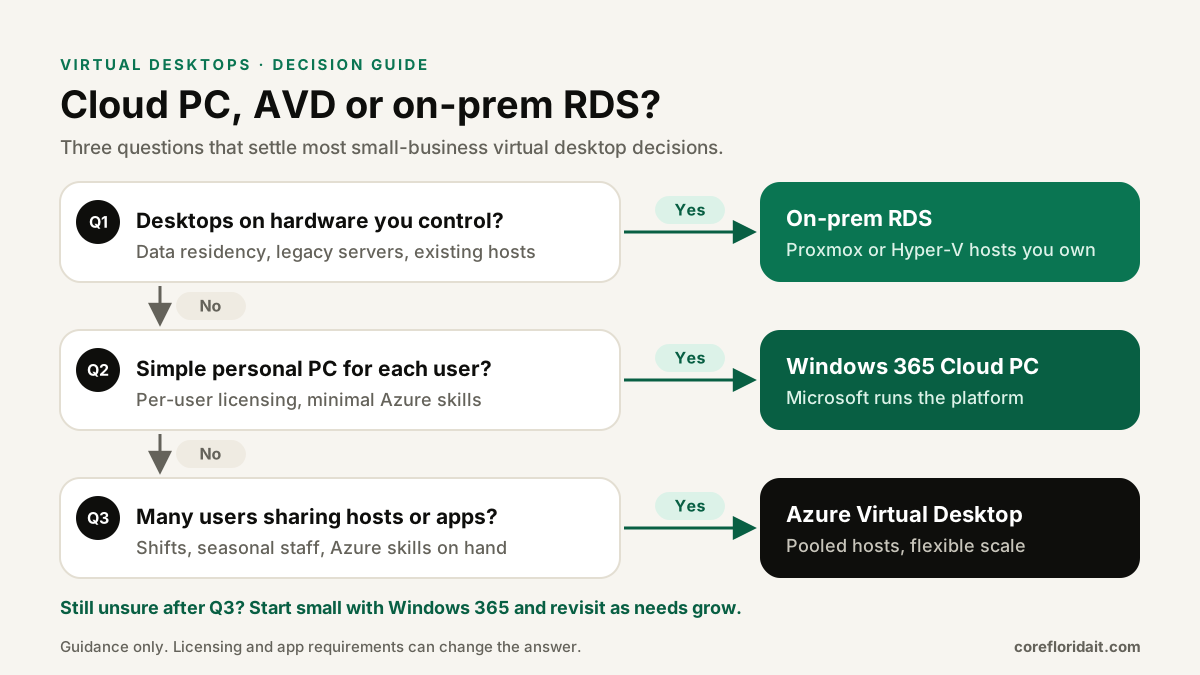
- Pick the platform with the decision tree above, and confirm licensing with your Microsoft licensing source.
- Build a pilot for five to ten users from different roles, including someone who works from home.
- Harden first: MFA, Conditional Access, redirection limits, timeouts, EDR, backups.
- Measure the experience for two weeks: sign-in time, Teams calls, printing, app speed.
- Write a short user guide in English and Spanish, and train before go-live.
- Roll out by department and add the VDI environment to your hurricane continuity plan.
Our cloud and dedicated servers and Proxmox virtualization teams design and run all three models, and our managed IT support covers the help desk once users are live.
FAQ
Is Windows 365 or Azure Virtual Desktop better for a small business?
For a small team that wants simplicity, Windows 365 is usually easier because each user gets a personal Cloud PC managed like a laptop. AVD becomes attractive when many users can share pooled hosts, when you need published apps, or when you have staff who can manage Azure.
Can we run virtual desktops on our own servers?
Yes. Remote Desktop Services on Windows Server, running on Proxmox or Hyper-V, keeps desktops and data on hardware you control. You need Windows Server and RDS CAL licensing, a secured RD Gateway with MFA, and a plan for power, backups and failover.
Do virtual desktops work during a hurricane?
The desktops keep running as long as they are hosted somewhere unaffected, such as an Azure region or a resilient data center. Users still need power and internet, so include hotspots or alternate locations in your continuity plan. An on-premises RDS server in a closed office is only as available as that building.
Do virtual desktops replace laptops?
Not entirely. Users still need a device to connect from, but it can be simpler, cheaper to replace and hold no company data. Many businesses keep standard laptops managed with Intune and use VDI for specific roles, contractors or sensitive applications.
Thinking about virtual desktops for your remote team or for hurricane-season continuity? Request a free IT assessment and we will map your apps and users to the right option, or book a Zoom call with Max.