Microsoft 365 Security Roadmap: A 90-Day Hardening Plan for Small Businesses
Turn Microsoft 365 security settings into a plan you can finish: a week of discovery, three 30-day phases, a named Conditional Access policy set and a monthly review.

A Microsoft 365 security roadmap turns a list of good settings into a plan your office can actually finish: lock down sign-in in the first 30 days, move to designed Conditional Access policies and harden email in days 31 to 60, then add device compliance and data controls by day 90. After that, a short monthly review keeps the tenant from drifting. This guide covers the order, the policy design and the review routine.
If you want the what (the individual settings and why each matters), start with our companion article, Microsoft 365 security settings every small business should turn on. This one is the how and when.
Key takeaways
- Do a one-week discovery first: licenses, admins, legacy sign-ins, devices, email senders and a Secure Score snapshot.
- Create two emergency access accounts before any Conditional Access policy exists.
- Design Conditional Access as a small, named policy set; run every policy in report-only mode before enforcing it.
- Treat Secure Score as a triage list: implement, use an alternative, accept the risk in writing, or mark not applicable.
- Finish with a 30-minute monthly review so the baseline survives staff changes, new apps and Microsoft updates.
Week 0: discovery before you change anything
Most lockouts and broken workflows during hardening come from surprises: a scanner that still uses basic authentication, a former vendor with Global Administrator rights, a third-party app nobody remembers approving. Spend the first week looking, not changing.
| What to collect | Where to find it | Why it matters |
|---|---|---|
| Licenses per user | Microsoft 365 admin center › Billing › Licenses | Decides whether you can use Conditional Access, Intune and Defender for Office 365 |
| Every admin role assignment | Entra admin center › Roles & admins | Unknown admins are the first thing to remove |
| Legacy sign-ins | Entra sign-in logs, filtered by client app | Shows what will break when legacy auth is blocked |
| Devices and their owners | Intune or Entra › Devices | Needed before requiring compliant devices |
| Services that send as your domain | DNS records, DMARC reports, vendor list | Needed before tightening SPF and DMARC |
| Enterprise apps with consent | Entra › Enterprise applications | Reveals apps with mailbox or file access |
| Secure Score snapshot | Microsoft Defender portal › Secure Score | Your starting point for measuring progress |
Write the findings in one shared sheet. It becomes the change log for the next 90 days.
Days 1–30: secure sign-in
Create two emergency access accounts first
Emergency access ("break-glass") accounts exist so that a bad policy, an outage of your MFA method or a departed administrator never locks you out of your own tenant. Design them carefully:
- Two accounts, cloud-only, on your
.onmicrosoft.comdomain, not tied to any person's phone or mailbox. - Permanently assigned Global Administrator, and used only in an emergency.
- Protected with phishing-resistant MFA, such as FIDO2 security keys, since Microsoft now requires MFA to sign in to its admin portals. Keep the keys in two separate secure locations. In South Florida, make sure one location stays reachable if the office is closed for a storm.
- Placed in a dedicated group that is excluded from every Conditional Access policy.
- Monitored: configure an alert on any sign-in to these accounts, using the tools your licensing provides, and test the accounts on a schedule.
Clean up administrators
Give each administrator a separate cloud-only admin account, remove roles nobody can justify, and replace Global Administrator with narrower roles (User, Exchange, Helpdesk Administrator) wherever possible. Microsoft recommends keeping the number of Global Administrators small. If you have Entra ID P2, put remaining admin roles behind Privileged Identity Management so they are activated only when needed.
Turn on MFA, with a communication plan
If you do not have Entra ID P1, turn on security defaults now: it requires MFA registration for everyone and blocks legacy authentication in one switch. If you do have P1, you can keep security defaults on during this phase and replace it with designed policies in phase two.
Send a short notice in English and Spanish a few days ahead: what is changing, when, how to install Microsoft Authenticator, and who to call. Bilingual teams in Doral or Hialeah adopt MFA faster when the instructions arrive in the language people use at work. Schedule the change away from payroll, month-end closing or a hurricane watch.
Find legacy sign-ins
Filter the sign-in logs by client app for legacy clients (POP, IMAP, SMTP, older Exchange clients). Typical results are multifunction printers, accounting software that emails invoices, and old phones. Move each one to a supported method (modern authentication, an SMTP relay connector, or a different sending service) and record it in the sheet.
Days 31–60: design Conditional Access and harden email
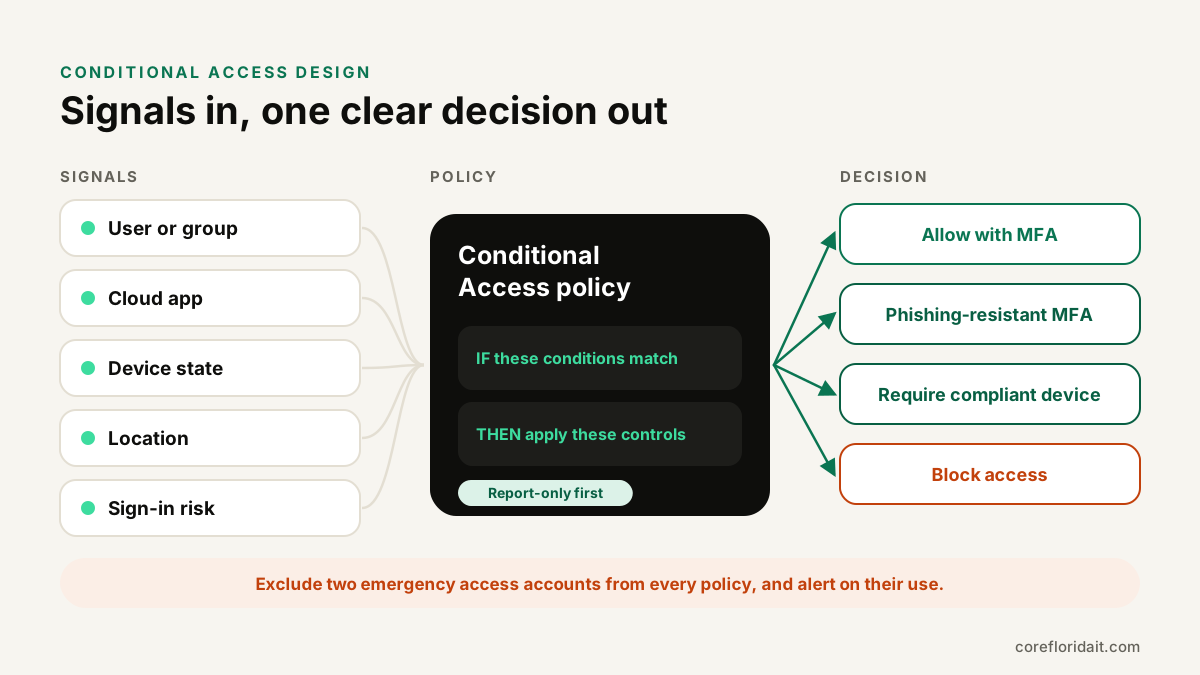
A small, named policy set
Conditional Access works best as a handful of clear policies, each doing one job, rather than one giant rule. Use a naming convention that tells you the scope, the target and the action at a glance:
| Policy | Assigned to | Target | Control |
|---|---|---|---|
| CA001-All-AllApps-RequireMFA | All users, excluding emergency group | All resources | Require MFA |
| CA002-All-BlockLegacyAuth | All users, excluding emergency group | Legacy client apps | Block |
| CA003-Admins-PhishResistantMFA | Admin directory roles | All resources | Authentication strength: phishing-resistant |
| CA004-All-SecureMFARegistration | All users | Register security information | Require MFA or a trusted location |
| CA005-Guests-RequireMFA | Guest and external users | All resources | Require MFA |
| CA006-Staff-RequireCompliantDevice | Staff group | Office 365 apps | Require compliant device (enabled in phase three) |
With Entra ID P2 you can add risk-based policies (for example, require MFA when a sign-in is flagged as risky). Microsoft may also create its own managed policies in your tenant; review them rather than ignore them.
Report-only, What If, then on
- Create each policy in report-only mode.
- Use the What If tool to test specific users, including an emergency account, which should show no policy applying.
- Watch the report-only results in the sign-in logs for at least a week.
- Turn the policy on, and only then turn off security defaults if you were using them. Never leave a gap where neither is protecting you.
Keep a record of every policy change: date, who changed it, why. When something breaks on a Monday morning, that record shortens the fix.
Email and app consent
In the same phase, apply the Defender for Office 365 Standard preset security policy (Strict for finance and leadership), confirm external sender tagging and the block on automatic external forwarding, and move DMARC from p=none toward p=quarantine once the reports show every legitimate sender passing. Then restrict user consent to third-party apps and enable the admin consent workflow, so requests reach an administrator instead of being silently approved or blocked. The settings guide walks through each of these.
Days 61–90: devices and data
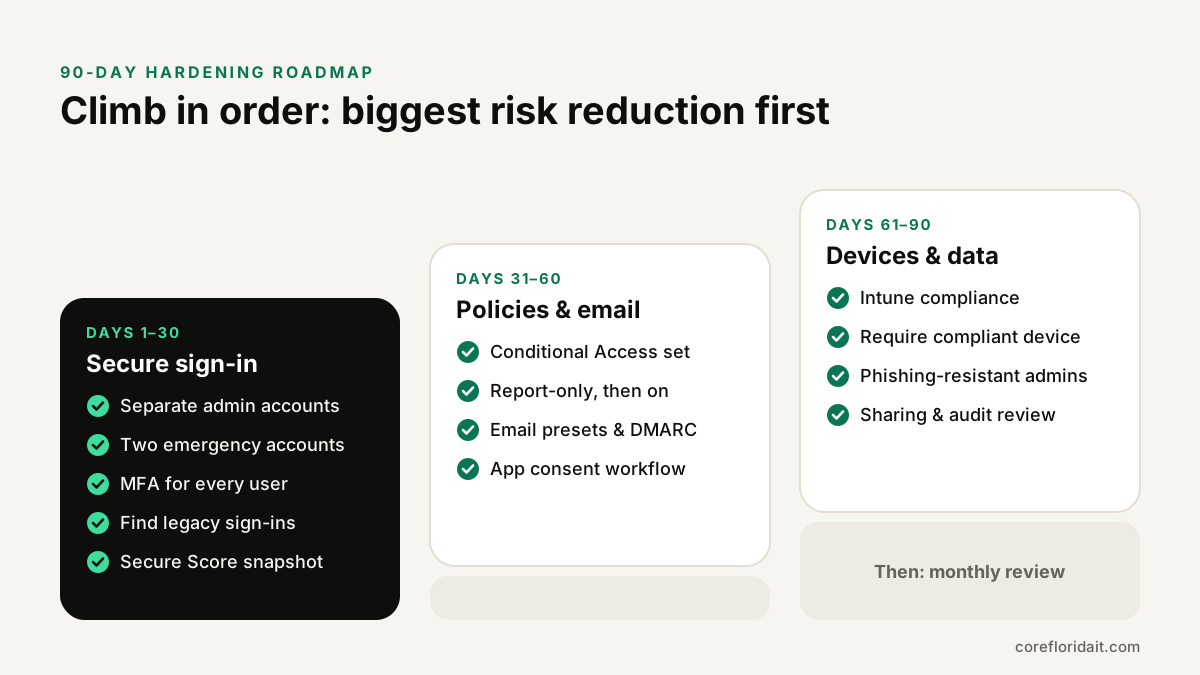
- Intune compliance: define what a healthy Windows or Mac device is (encryption, supported OS version, Defender running, screen lock). Enroll company devices, fix the non-compliant ones, then enable CA006 to require a compliant device. For personal phones, use app protection policies instead of full enrollment. Our Microsoft Intune service covers this rollout.
- Phishing-resistant admins: issue FIDO2 keys or passkeys to administrators and enforce CA003. See our guide to passkeys for business.
- Sharing review: check the SharePoint and OneDrive organization sharing level, turn off "Anyone" links if you can, require guest access to expire, and review which sites have external users.
- Audit check: confirm unified audit logging is on and that someone knows how to search it.
A Secure Score workflow that does not chase points
Secure Score is useful because it lists concrete actions and tracks progress. It becomes harmful when the goal turns into the number. Triage every recommendation into one of four outcomes:
| Outcome | When to use it | What to record |
|---|---|---|
| Implement | It fits your business and licensing | Owner, target date, policy name |
| Resolved through alternative | You meet the goal another way | Which control covers it |
| Risk accepted | It does not fit, and you understand the trade-off | Reason, who approved, review date |
| Not applicable | The feature is not used in your tenant | Short note |
Update the status in the Defender portal so the score reflects your real decisions, and keep the reasons in your change log. For regulated firms, such as CPA practices covered by the FTC Safeguards Rule, those records also help show your security program is deliberate. See IT support for CPA firms.
The monthly review (30 minutes)
| Check | Where | Look for |
|---|---|---|
| Emergency account sign-ins | Sign-in logs, alerts | Any use at all |
| Admin role changes | Entra audit log | New or unexplained assignments |
| Conditional Access changes | Entra audit log | Policies edited, disabled or new exclusions |
| Legacy sign-in attempts | Sign-in logs | New devices or apps trying basic auth |
| Users without MFA methods | Authentication methods activity | New hires who never registered |
| New app consents | Enterprise applications | Apps with mail or file permissions |
| Non-compliant devices | Intune | Devices stuck out of compliance |
| Secure Score | Defender portal | New recommendations from Microsoft |
| DMARC reports | Your DMARC report mailbox or tool | New senders failing authentication |
Also run a quick offboarding check: every person who left this month should have their sign-in blocked, sessions revoked and licenses removed.
Common mistakes
- Creating Conditional Access policies before the emergency accounts exist.
- Turning off security defaults the same day policies are created, without a report-only period.
- Using one broad exclusion group for "people who complained", which slowly empties your policies.
- Treating a high Secure Score as proof of security, while emergency accounts go unmonitored.
- Running the plan once and never reviewing it again.
FAQ
Can a small business do this roadmap without Business Premium?
Partly. Days 1–30 and most email and consent steps work on any plan with security defaults. Conditional Access needs Entra ID P1, and device compliance needs Intune, both included in Business Premium and available as add-ons.
Why 90 days and not one weekend?
Each phase needs observation time: report-only results, DMARC reports and device compliance fixes. Rushing those steps is how offices lock out staff or lose legitimate email.
Who should own the monthly review?
Someone with admin access and authority to ask questions, usually an internal IT lead or your managed IT provider, with a summary to the owner or office manager.
What if a policy locks people out?
Sign in with an emergency access account, set the policy back to report-only, read the sign-in log for the reason and fix the cause before re-enabling it.
Start your 90-day plan
Core Florida IT runs this roadmap for professional firms in Brickell, Coral Gables, Fort Lauderdale and across the US, and keeps the monthly review going as part of our cybersecurity and managed IT support services. Request a free IT assessment and we will start with the week-0 discovery for your tenant.
Sources
- Microsoft Learn: Security defaults in Microsoft Entra ID
- Microsoft Learn: Plan a Conditional Access deployment
- Microsoft Learn: Conditional Access report-only mode
- Microsoft Learn: Manage emergency access accounts
- Microsoft Learn: Authentication strengths
- Microsoft Learn: Microsoft Secure Score
- CISA: Secure Cloud Business Applications (SCuBA) project