Microsoft 365 Copilot Readiness: Fix Permissions and Oversharing First
Copilot only shows what each user can already open, so overshared SharePoint sites, Teams and links become easy to find. Here is how to assess, clean up, label and pilot safely.

Microsoft 365 Copilot readiness is mostly a permissions project, not an AI project. Copilot can only work with content each user is already allowed to open, so if your SharePoint sites, Teams and OneDrive links are overshared, Copilot will make that oversharing fast and easy to find. Clean up access, label sensitive data and pilot with a small group before you license the whole company.
Key takeaways
- Copilot respects existing Microsoft 365 permissions. It does not grant new access, but it removes the "security through obscurity" many firms rely on without realizing it.
- The biggest risks are broad groups ("Everyone except external users", public Teams), old sharing links and folders where inheritance was broken years ago.
- Sensitivity labels in Microsoft Purview let you classify and protect the files that matter most, and encrypted labels can limit what Copilot can use.
- Roll out in phases: assess, clean up, pilot, then scale with an AI use policy and training.
Why oversharing is the real Copilot readiness problem
Microsoft 365 Copilot answers questions by searching the content a user can access through Microsoft Graph: email, chats, meetings, files in OneDrive, SharePoint and Teams. Microsoft states plainly that Copilot only surfaces organizational data the individual user has at least view permission for.
That sounds reassuring, and it is, as far as it goes. The problem is that in most small and mid-sized businesses nobody really knows who can view what. A paralegal in a Brickell law firm may technically have access to a partners' compensation spreadsheet because it was saved to a team site everyone belongs to. A bookkeeper at a Coral Gables CPA firm might be able to open last year's payroll export through a sharing link someone created for an auditor. Before Copilot, those files stayed hidden because nobody went looking. With Copilot, an innocent prompt like "summarize what we pay our senior staff" can pull them into an answer.
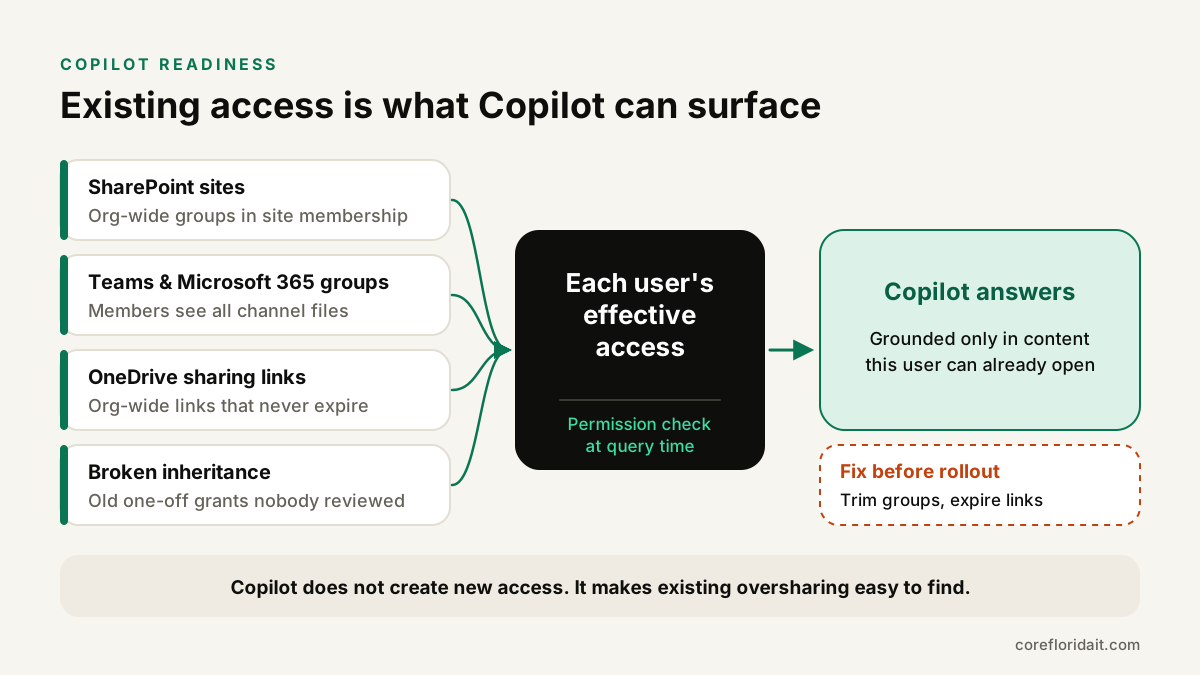
Where oversharing usually hides
| Source | How it happens | What to check |
|---|---|---|
| SharePoint site membership | "Everyone except external users" or all-staff groups added to a site | Site permissions and members of the Visitors/Members groups |
| Public Teams and Microsoft 365 groups | A team created as "Public" lets anyone in the organization reach its files | Team privacy setting and owners |
| Sharing links | "People in your organization" or "Anyone" links created and never expired | Sharing reports, link expiration policy |
| Broken inheritance | One-off permissions on folders or files from past projects | Unique permissions on libraries with sensitive content |
| Former projects and stale sites | Old sites nobody owns but everyone can still read | Last activity date, site owner, archive or delete |
| Guest access | External guests left in Teams after an engagement ended | Guest list and access reviews |
Licensing and technical prerequisites (high level)
Microsoft 365 Copilot is an add-on license that requires a qualifying base plan, such as Microsoft 365 Business Standard or Business Premium, or an enterprise plan. Microsoft updates the list of eligible plans and requirements, so confirm the current list on Microsoft Learn before you buy. Beyond the license itself, make sure you have:
- Entra ID accounts with multifactor authentication for every user who will get Copilot. An AI assistant with access to a compromised mailbox is a gift to attackers.
- Files in OneDrive and SharePoint, not on a local file server or personal drives, if you want Copilot to use them. This is a good moment to decide what should migrate and what should be archived.
- Current Microsoft 365 Apps on a supported update channel, plus the new Outlook and Teams clients where applicable.
- Network access to the Microsoft 365 endpoints Copilot needs, which matters if your firewall or web filter is strict.
- Clear ownership: someone who can make decisions about SharePoint structure, retention and access, not just the person who resets passwords.
Step 1: Find out who can see what
Start with an inventory. Microsoft provides several tools, and which ones you have depends on your licensing:
- SharePoint admin center reports and, where available, SharePoint Advanced Management data access governance reports that show sites with broad sharing, "Everyone except external users" permissions and many sharing links.
- Microsoft Purview content explorer and activity explorer (with the right licensing) to locate files that contain sensitive information types like Social Security numbers or bank account numbers.
- PowerShell for a quick, exportable snapshot.
A simple starting point with the SharePoint Online management shell:
Connect-SPOService -Url https://yourtenant-admin.sharepoint.com
Get-SPOSite -Limit All |
  Select-Object Url, Owner, SharingCapability, LastContentModifiedDate |
  Export-Csv .\sites-inventory.csv -NoTypeInformation
And to list public Microsoft 365 groups (which back Teams) with Microsoft Graph PowerShell:
Connect-MgGraph -Scopes "Group.Read.All"
Get-MgGroup -All -Property DisplayName, Visibility, GroupTypes |
  Where-Object { $_.GroupTypes -contains 'Unified' -and $_.Visibility -eq 'Public' } |
  Select-Object DisplayName
Sort the results by sensitivity: HR, payroll, finance, legal matters, patient or client records, M&A and executive content first.
Step 2: Clean up permissions and sharing
Cleanup does not have to be a giant, all-at-once project. Focus on the content that would hurt if it appeared in the wrong answer.
- Remove broad groups from sites that hold sensitive content. Replace "Everyone except external users" with specific security groups.
- Make sensitive Teams private and confirm every team has at least two named owners.
- Set expiration on sharing links and change the default link type to "Specific people" in the SharePoint admin center. Review existing "Anyone" and organization-wide links on sensitive libraries.
- Fix broken inheritance on libraries where you find one-off permissions. Usually the right answer is a dedicated site or library with a clean permission model.
- Archive or delete stale sites with no owner and no recent activity, following your retention requirements.
- Run guest access reviews so former vendors and clients lose access to Teams they no longer need.
While you clean up, Microsoft offers temporary guardrails, such as Restricted SharePoint Search or, with SharePoint Advanced Management, Restricted Content Discovery for specific sites. They can keep certain sites out of organization-wide search and Copilot while you fix permissions. Treat them as a bridge, not a substitute for correct access.
Step 3: Label what matters with Microsoft Purview
Sensitivity labels let you classify content (for example Public, Internal, Confidential, Highly Confidential) and attach protection such as encryption, watermarks or restrictions on external sharing. For Copilot readiness, labels help in three ways:
- Copilot inherits labels. When Copilot creates content from a labeled source, the new content can carry the label, and Copilot shows the label in its responses.
- Encryption controls usage. For encrypted items, Copilot can only use the content if the user has the usage rights the label grants. That gives you a stronger control than site permissions alone for your most sensitive files.
- Data loss prevention can extend to Copilot. Newer Microsoft Purview DLP options can keep items with specific labels from being processed in Copilot responses, depending on your licensing.
Keep the label set short. Four or five labels that people actually understand beat a dozen that nobody uses. Start with default labeling for new documents in sensitive sites, and use auto-labeling for well-defined data like payment card or Social Security numbers if your plan supports it.
Step 4: Pilot with a small, varied group
Pick a pilot group of 10 to 20 people from different roles: an executive, someone in finance, a project manager, an assistant, a salesperson. Avoid choosing only technology enthusiasts; you want realistic usage.
- Define three to five real use cases per role: summarizing long email threads, drafting proposals from past templates, preparing meeting recaps, finding a policy document.
- Ask pilot users to report surprises, especially any answer that includes information they did not expect to see. Each report is a permission problem you can fix before wider rollout.
- Measure value with simple qualitative feedback: which tasks became easier, which outputs needed heavy editing, where Copilot was wrong.
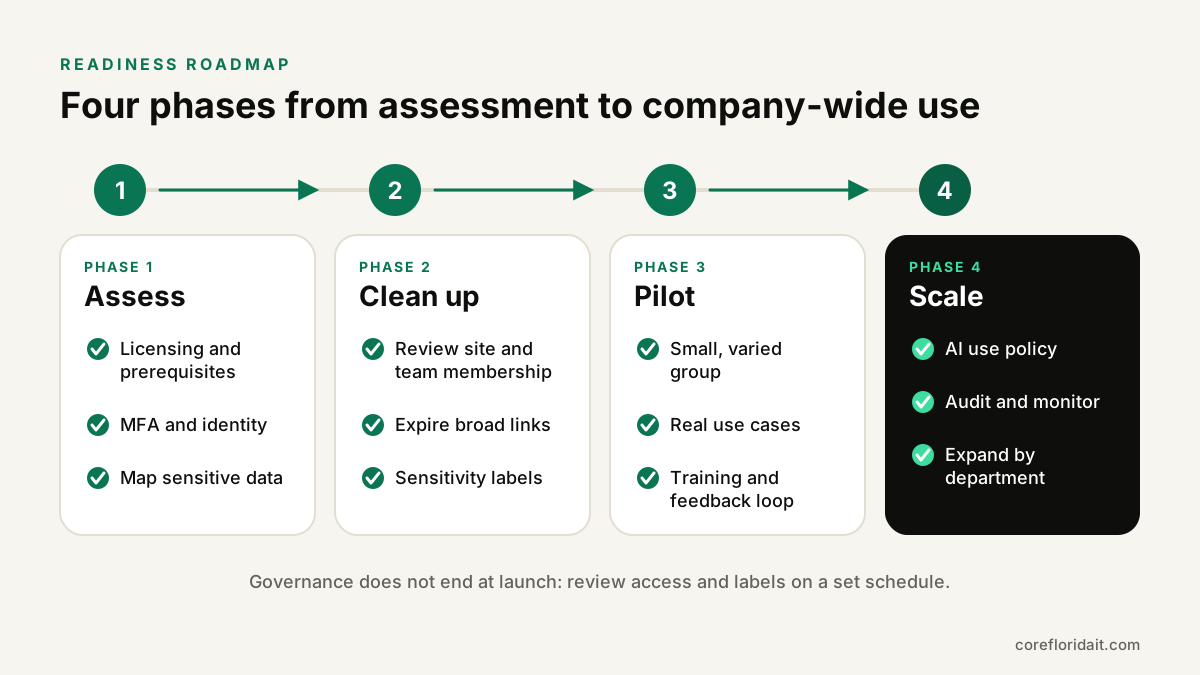
Step 5: Policy and training before company-wide rollout
Technology controls do not replace clear rules. Before you scale, publish a short AI use policy (see our guide on how to write an AI use policy for employees) that covers:
- Which AI tools are approved and which are not, so people stop pasting client data into consumer chatbots.
- That people remain responsible for anything they send or file, and must review Copilot output before using it.
- What to do when Copilot shows something they should not see: stop, do not share it, and report it to IT.
- Special handling for regulated data (health information, client legal matters, financial records).
Then train people. Good prompting, checking the sources Copilot cites and recognizing confident but wrong answers are learnable skills. Our AI training for teams covers this in English and Spanish, which matters for bilingual South Florida offices.
Common mistakes
- Buying licenses first and cleaning up later. The moment Copilot is on, oversharing becomes visible to everyone with a license.
- Assuming "nobody would look for it" is protection. Copilot looks for everyone.
- Turning off search to hide problems instead of fixing the permissions underneath.
- Too many labels that confuse users, who then label everything as Public.
- No owner for SharePoint. Without someone responsible, permissions drift back to chaos within months.
- Skipping MFA and conditional access, which turns one phished password into an AI-assisted search across the company.
Governance after launch
Readiness is not a one-time project. Schedule quarterly access reviews for sensitive sites and Teams, monitor sharing reports, review Copilot-related audit events in Microsoft Purview, and update the label set and policy as your business changes. When new departments or acquisitions join, put them through the same assess and clean-up steps before they get Copilot.
If you want help, our managed IT support and cybersecurity teams run Microsoft 365 permission reviews for professional services firms across Miami-Dade and Broward, including law firms with strict confidentiality duties.
FAQ
Can Microsoft 365 Copilot see files a user cannot open?
No. Microsoft documents that Copilot only uses organizational data the individual user has at least view permission for. The risk is that users can often open far more than anyone intended.
Do we need sensitivity labels before we turn on Copilot?
They are not technically required, but they are strongly recommended for sensitive content. Labels with encryption add a control that does not depend only on site permissions, and labels carry over to content Copilot generates.
How long does a Copilot readiness project take for a small business?
It depends on how many sites, Teams and shared folders you have and how messy they are. A small, well-organized tenant can move quickly; a firm with years of unmanaged sharing should plan a structured cleanup before the pilot.
Should we use Restricted SharePoint Search?
It can be a useful temporary guardrail while you fix permissions, because it limits which sites appear in organization-wide search and Copilot. Microsoft positions it as a temporary measure, so plan to fix access properly.
Ready to find out how exposed your Microsoft 365 tenant really is? Request a free IT assessment and we will review your SharePoint, Teams and OneDrive sharing, identify the highest-risk content and give you a practical Copilot readiness plan.