Linux Server Firewall Guide: nftables, ufw and firewalld Without Locking Yourself Out
Set up a default-deny firewall on Debian, Ubuntu and RHEL with nftables, ufw or firewalld, keep SSH reachable, handle IPv6 and Docker, and test from outside.
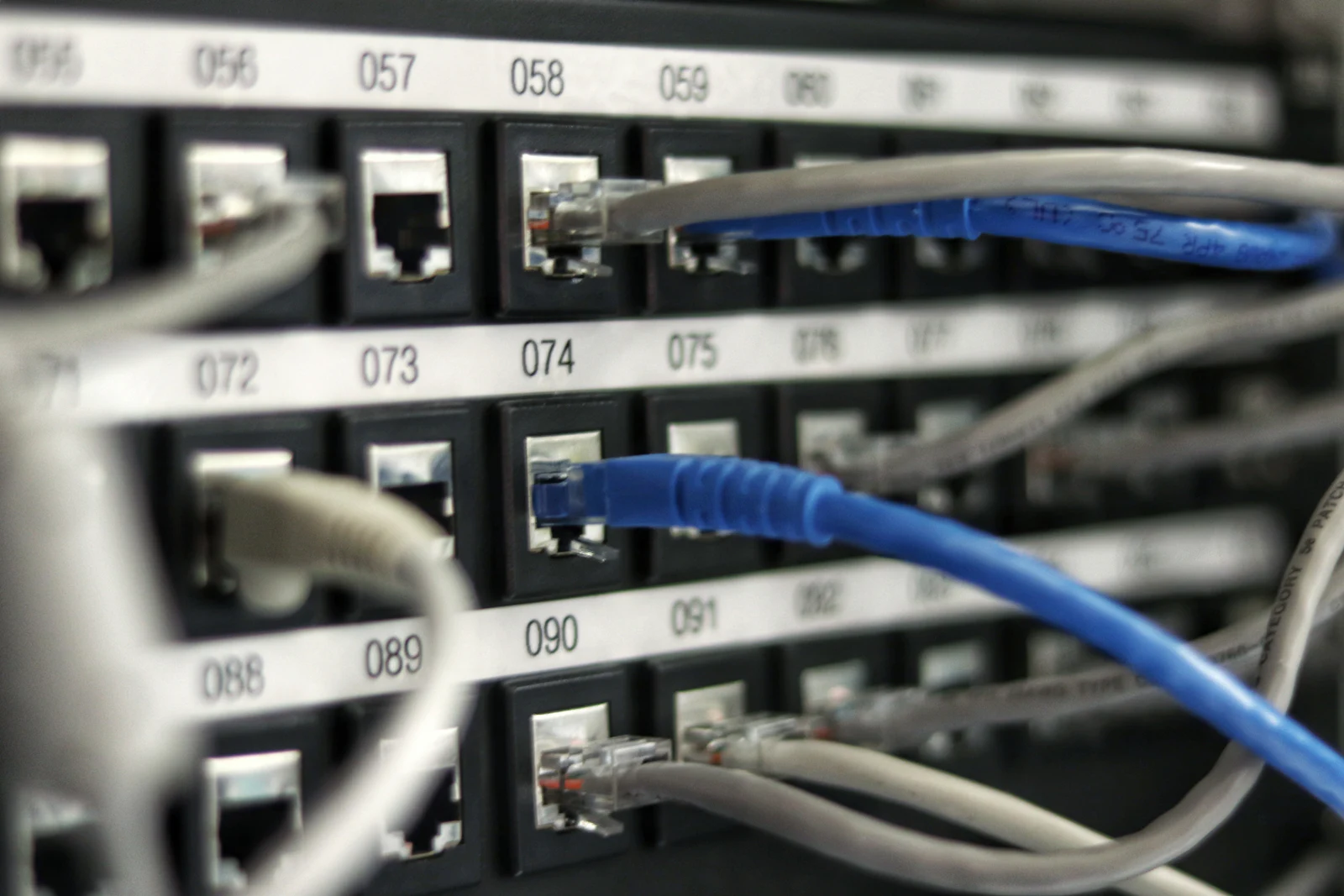
A business Linux server should block every inbound connection by default and allow only the services it actually offers, such as SSH from your office and HTTPS from everyone. On Debian you can write that policy directly in nftables; on Ubuntu the usual front end is ufw; on Red Hat Enterprise Linux and AlmaLinux it is firewalld. All three end up as nftables rules in the kernel. The two classic mistakes are locking yourself out of SSH while enabling the firewall, and assuming the firewall protects ports that Docker published, which it often does not. This guide covers default-deny with each tool, safe enabling, rate limiting, IPv6, Docker and how to test the result.
The policy first, then the tool
Before typing a command, write down three lists:
- Public services: what the internet must reach (often only TCP 80 and 443).
- Restricted services: what only your office, VPN or management network should reach (SSH, admin panels, databases, monitoring).
- Everything else: denied.
Check what is actually listening with sudo ss -tulpn. Anything listening that is not on your lists should be stopped or bound to 127.0.0.1, not just firewalled. Use one firewall manager per server: do not mix ufw, firewalld and a hand-written nftables ruleset on the same machine. This fits into the wider checklist in our Linux server hardening essentials.
Do not lock yourself out
The firewall only needs one mistake to cut off your SSH session, so prepare:
- Have a second way in: your hosting provider's web console, IPMI/iDRAC/iLO, or someone on site.
- Allow SSH before enabling a default-deny policy, and allow established connections so your current session survives.
- Keep the current session open and test with a new SSH connection before you log out.
- Schedule an automatic rollback while you test a new nftables ruleset:
sudo systemd-run --unit=fw-rollback --on-active=5m /usr/sbin/nft delete table inet filter
Apply and test the new rules, then cancel the rollback:
sudo systemctl stop fw-rollback.timer
firewalld has this built in: runtime rules can expire with --timeout=5m, and changes made without --permanent disappear on the next reload or reboot.
nftables on Debian 12 and 13
Debian uses nftables as its firewall framework. Install it and enable the service that loads /etc/nftables.conf at boot:
sudo apt install nftables
sudo systemctl enable nftables
Here is a default-deny example for a web server. Replace the example addresses with your office or VPN addresses.
#!/usr/sbin/nft -f
table inet filter
delete table inet filter

table inet filter {
    set ssh_allow_v4 {
        type ipv4_addr; flags interval;
        elements = { 203.0.113.10, 198.51.100.0/24 }
    }
    set ssh_allow_v6 {
        type ipv6_addr; flags interval;
        elements = { 2001:db8:10::/48 }
    }
    set ssh_rate_v4 {
        type ipv4_addr; flags dynamic; timeout 1m; size 65536;
    }

    chain input {
        type filter hook input priority filter; policy drop;

        ct state vmap { established : accept, related : accept, invalid : drop }
        iif "lo" accept

        # ICMP for path MTU discovery and diagnostics
        ip protocol icmp icmp type { echo-request, destination-unreachable, time-exceeded, parameter-problem } accept
        # ICMPv6 is required for IPv6 to work (neighbor discovery)
        icmpv6 type { echo-request, destination-unreachable, packet-too-big, time-exceeded, parameter-problem, nd-router-advert, nd-neighbor-solicit, nd-neighbor-advert } accept

        # SSH: at most 10 new connections per minute per IPv4 address, from allowed networks only
        tcp dport 22 ct state new add @ssh_rate_v4 { ip saddr limit rate over 10/minute } drop
        tcp dport 22 ip saddr @ssh_allow_v4 accept
        tcp dport 22 ip6 saddr @ssh_allow_v6 accept

        # Public web services (IPv4 and IPv6)
        tcp dport { 80, 443 } accept

        # Log a sample of dropped packets
        limit rate 5/minute log prefix "nft-drop: " level info
    }

    chain forward {
        type filter hook forward priority filter; policy drop;
    }
}
A few notes on this ruleset:
- The first two lines reset only this table, leaving Docker's or other tools' tables alone, so the file can be reloaded safely.
- The
inetfamily covers IPv4 and IPv6 in one table, so you cannot forget IPv6. Never block all ICMPv6: IPv6 stops working without neighbor discovery. - The
ct stateline accepts replies to traffic the server started and keeps existing sessions alive. - The rate limit uses a dynamic set, as described in the
nft(8)manual, so one noisy address cannot flood SSH. - The
forwardchain drops routed traffic. On a Docker, KVM or Proxmox host, remove it or adapt it, because a drop policy here also drops traffic to containers and VMs.
Check the syntax, then load it with the rollback timer armed:
sudo nft -c -f /etc/nftables.conf
sudo nft -f /etc/nftables.conf
sudo nft list ruleset
Because the file is loaded by nftables.service, the rules persist across reboots once the service is enabled.

ufw on Ubuntu 24.04
ufw ("uncomplicated firewall") ships with Ubuntu and is inactive until you enable it. Set the defaults and allow SSH before enabling:
sudo ufw default deny incoming
sudo ufw default allow outgoing
sudo ufw allow proto tcp from 203.0.113.10 to any port 22
sudo ufw allow proto tcp from any to any port 80,443
sudo ufw enable
sudo ufw status verbose
If SSH must stay reachable from anywhere, use ufw's rate limiting instead of the source-restricted rule. Per the ufw manual, it denies an address that opens 6 or more connections within 30 seconds:
sudo ufw limit 22/tcp
- IPv6: ufw manages IPv6 by default (
IPV6=yesin/etc/default/ufw), and rules you add apply to both protocols. - Persistence: ufw rules and its enabled state survive reboots automatically.
- Review:
sudo ufw show addedlists the rules as you typed them;sudo ufw status numberedshows them with numbers forsudo ufw delete <n>. - The ufw manual warns that enabling it can drop existing connections, and it asks for confirmation over SSH. That is your cue to double-check the SSH rule.
firewalld on RHEL and AlmaLinux 9 and 10
firewalld is installed and running by default on standard installs (some minimal cloud images omit it). It groups rules into zones; interfaces belong to the default zone, usually public, unless assigned otherwise. Start by looking at what is open:
sudo firewall-cmd --get-default-zone
sudo firewall-cmd --get-active-zones
sudo firewall-cmd --list-all
A fresh install's public zone often allows ssh, dhcpv6-client and cockpit. Open only what you need and remove the rest:
sudo firewall-cmd --permanent --add-service=http --add-service=https
sudo firewall-cmd --permanent --remove-service=cockpit
sudo firewall-cmd --reload
To restrict SSH to your office, add a rich rule, reload, test a new SSH session from the office, and only then remove the general ssh service:
sudo firewall-cmd --permanent --add-rich-rule='rule family="ipv4" source address="203.0.113.10" service name="ssh" accept limit value="10/m"'
sudo firewall-cmd --reload
After a new SSH connection from 203.0.113.10 works:
sudo firewall-cmd --permanent --remove-service=ssh
sudo firewall-cmd --reload
- Changes without
--permanentapply immediately but are lost on reload; changes with--permanentapply after--reload. Once you are happy with runtime rules,sudo firewall-cmd --runtime-to-permanentsaves them. - Services and ports in a zone apply to IPv4 and IPv6. Rich rules with
family="ipv4"only match IPv4, so add a matchingfamily="ipv6"rule if you manage the server over IPv6. - Do not enable
nftables.servicewith your own ruleset alongside firewalld.
The Docker caveat
Docker's documentation is explicit: published container ports are reachable from outside by default, and with ufw the traffic is diverted before ufw's rules apply, so ufw deny does not protect a port published with -p. With firewalld, Docker creates its own docker zone with an ACCEPT target. In practice:
- Bind to localhost when a container sits behind a reverse proxy on the same host:
-p 127.0.0.1:8080:80(or"127.0.0.1:8080:80"in Compose). - Filter in the
DOCKER-USERchain, which Docker processes before its own rules, for example to allow only one source address:sudo iptables -I DOCKER-USER -i eth0 ! -s 192.0.2.2 -j DROP(replaceeth0with your external interface). - Do not flush Docker's tables: a ruleset that starts with
flush rulesetremoves Docker's rules too. Resetting only your own table, as in the example above, avoids that.
Test from the outside
A firewall is only verified when you scan it from somewhere else, such as another server or an office machine you are authorised to test from:
nmap -Pn -p 1-1024,3306,5432,8080 server.example.com
nmap -6 -Pn -p 22,80,443 server.example.com
Expect open only for the services on your public list, and filtered everywhere else. Repeat the scan after every change, after installing new software and on a regular schedule, and keep the output with your change records.
If you would like a second pair of eyes on your server firewalls, or help locking down Docker hosts safely, request a free IT assessment. Core Florida IT configures and monitors business servers for companies across Miami-Dade and South Florida through our cybersecurity and cloud and dedicated server services.