Small Office Network and Wi-Fi Upgrade Guide
How to plan a small office network and Wi-Fi upgrade: firewall, switches, access points, cabling and security, explained step by step.

A good small office network upgrade starts with a site survey and an inventory, then replaces the weakest links in order: a business-grade firewall, managed switches with Power over Ethernet, ceiling-mounted Wi-Fi access points managed from one console, and proper cabling. Separate guest and staff traffic, use WPA2 or WPA3 encryption, and document everything when you finish.
Slow Wi-Fi, dropped video calls and dead zones are some of the most common complaints in small offices. Often the cause is not the internet connection itself but the equipment inside the office: a consumer router doing too many jobs, a single access point covering too much space or old cabling. Here is how to plan an upgrade that solves the problem instead of moving it.
Signs Your Network Needs an Upgrade
- Wi-Fi is fine near the router but weak in conference rooms or back offices
- Video calls freeze or drop even though your internet plan should be fast enough
- Devices disconnect randomly and need to rejoin the network
- Guests and staff share the same Wi-Fi password
- Nobody knows the admin password for the router or switches
- Network equipment is several years old and no longer receives firmware updates
Step 1: Assess What You Have
Before buying anything, document the current setup:
- Internet service type and speed, and whether a backup connection exists
- Firewall or router make and model, and whether it is still supported
- Number and type of switches
- Wi-Fi access points and where they are installed
- Cabling: where it runs and what category it is
- Number of users and devices, including phones, printers, cameras and smart devices
A Wi-Fi site survey, even a basic one, shows where coverage is weak and where interference comes from. In multi-tenant buildings in Brickell or downtown Miami, neighboring networks are often a major source of interference.
Step 2: Choose a Business-Grade Firewall
The firewall sits between your office and the internet. Consumer routers combine many functions in one small box and often lack the security features and management a business needs. A business-grade firewall typically offers:
- Ongoing firmware and security updates
- Network segmentation with VLANs
- Secure remote access options
- Logging and alerting
- Optional failover to a second internet connection
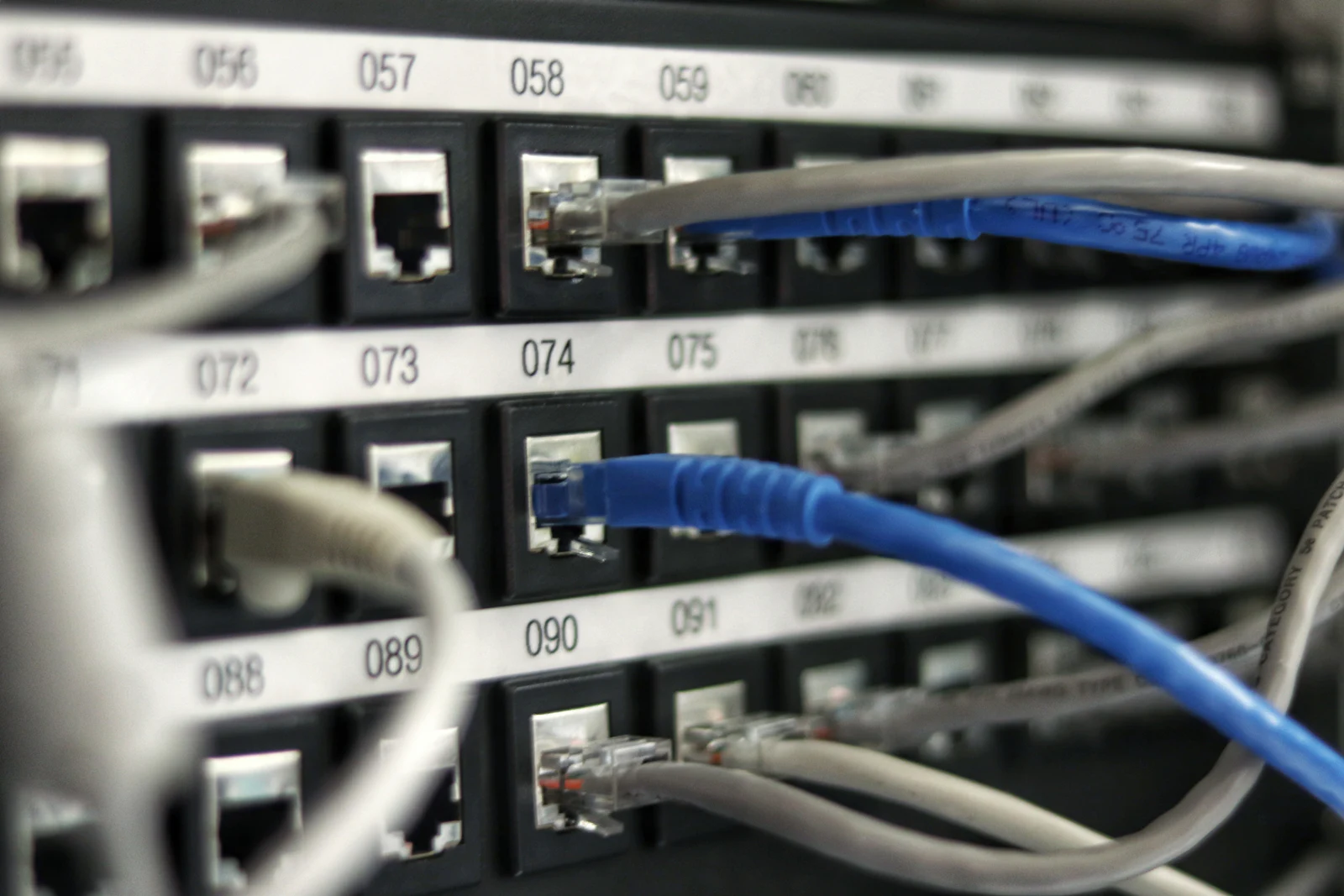
Step 3: Upgrade Switches and Cabling
Managed switches let you segment traffic, monitor ports and power devices such as access points, phones and cameras through Power over Ethernet (PoE).
For cabling, Cat6 is a common choice for new runs in offices, supporting gigabit speeds and more over typical office distances. Old or damaged cables can cause errors that look like Wi-Fi or internet problems.
Step 4: Design Wi-Fi for Coverage and Capacity
Wi-Fi works best with several properly placed access points rather than one powerful router.
- Mount access points on ceilings, centrally in the areas they serve
- Plan for capacity in meeting rooms and open work areas where many devices connect
- Use a single management console so all access points share settings
- Choose current standards such as Wi-Fi 6 or Wi-Fi 6E; consider Wi-Fi 7 if your devices and budget justify it
Step 5: Segment and Secure the Network
Segmentation keeps a problem in one area from spreading to others. A typical small office might use:
| Network segment | Who or what uses it | Access |
|---|---|---|
| Staff | Company laptops and desktops | Full access to business resources |
| Guest | Visitors and personal phones | Internet only, isolated from staff |
| Voice | IP phones | Prioritized for call quality |
| Devices | Printers, cameras, smart TVs | Limited to what each needs |
| Management | Switches, access points, firewall admin | IT only |
Additional security basics:
- Use WPA2-Enterprise or WPA3 where supported, and at minimum a strong WPA2 passphrase
- Change default admin passwords and enable MFA on management portals
- Keep firmware updated on a schedule
- Disable remote management features you do not use
Our cybersecurity services include firewall configuration and hardening.
Step 6: Plan for Power and Redundancy
- Put the firewall, switches and modem on a UPS so short power interruptions do not take the office offline
- Consider a secondary internet connection from a different provider or technology for failover
- Label equipment and cables so troubleshooting is faster
Step 7: Document and Monitor
When the upgrade is finished, record the network layout, IP ranges, Wi-Fi networks, admin credentials (stored securely) and support contracts. Ongoing monitoring alerts you when a device goes offline or a link degrades. This is a standard part of our managed IT support.
FAQ
Will a faster internet plan fix slow Wi-Fi?
Not always. If the bottleneck is weak coverage, interference or an overloaded router, a faster plan will not help much. Assess the internal network first.
How many access points does a small office need?
It depends on floor plan, wall materials and the number of devices. A site survey gives a reliable answer. Planning for both coverage and capacity avoids dead zones and slowdowns.
Can we upgrade without disrupting the business?
Yes. Most upgrades can be staged and scheduled after hours or on weekends, with the cut-over planned carefully to minimize downtime.
Plan Your Network Upgrade
Core Florida IT designs and upgrades small office networks across Miami-Dade, from Doral warehouses to Coral Gables professional offices. Our free IT assessment reviews your firewall, switches, Wi-Fi and cabling and gives you a clear upgrade plan. Request your free IT assessment.